


Samsung SmartTag
3.119.00 Reviews
App Specs
- Version
- 18.0.0
- Updated On
- License
- Free
- Downloads
- 10,000+
- Developer
- Boss Inc
- Categories
- Libraries & Demo
- Platform
- Android
Screenshots
 Analysis by AppCompare
I approached Samsung SmartTag as a practical tool for the familiar lost-keys problem, rather than a gadget that can locate everything everywhere. The important first distinction is that this Android app is intended to work with Samsung Galaxy SmartTag and other smart tags. The tag is the item you attach to your belongings; the app is the place to manage the tracking experience. Keeping those roles clear makes the first use much less confusing.
What to expect from a tag companion app
This is a free app in the Libraries & Demo category, developed by Boss Inc. It has a 3.0 average from around 100 ratings, and has been installed over 10,000 times. Those figures suggest a modest audience and mixed reception, so I would treat it as a focused utility to evaluate against your own needs, not as an automatic choice for every phone or tracker.
The app’s main appeal is straightforward: pair a compatible tag, associate it with something you often misplace, and use your phone when you need help locating it. That can be useful for keys, a work bag, or a case you take between home and the office. The real value is less about turning an ordinary day into a high-tech one and more about having a repeatable way to check for a frequently misplaced item.
It is rated for Everyone, and the current version is 18.0.0. The app was released on August 9, 2025, and supports Android 7.0 or later. Before installing, I’d check that your phone meets that minimum and that the tracker you intend to use is one of the supported smart tags. A tracker’s brand and phone compatibility matter more than the general promise of “finding things”: an app cannot make an incompatible tag work.
Start with the tag you actually own
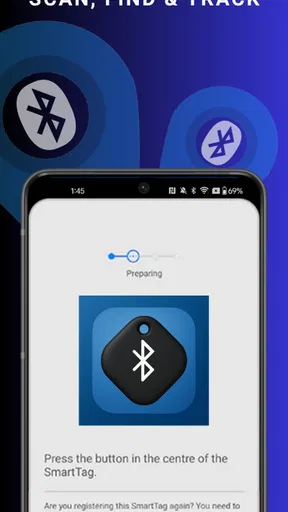
For a first setup, I’d begin with the tag in hand and the item you plan to track nearby. Install the app, open it, and follow the pairing prompts rather than trying to configure several tags at once. Starting with a single tag gives you a simple test: you can confirm that the phone and tag connect before relying on the setup for something important.
One practical tip is to name the tag for the object it will stay with, using a label you can recognize quickly. “House keys” is more useful in a list than a vague label like “Tag.” If you later add another tracker, clear names reduce the chance of selecting the wrong one when you are in a hurry. I’d also attach the tag securely before finishing the test, so you are checking the setup in the same arrangement you will use day to day.
The app is presented as a companion for Galaxy SmartTag and other smart tags, but that does not mean every tracker behaves identically. If pairing stalls, first confirm that you have the right tag and that it is ready to pair according to its own instructions. Then try again with the phone close by. This is a more useful first troubleshooting step than repeatedly tapping through screens without checking whether the hardware is compatible or prepared.
Worth Reading Before You Choose

EA SPORTS FC Mobile 26 Is a Bigger Football Game, but It Takes Time

Flipboard Shows What News Apps Must Do Beyond the Feed

Switching to Android Auto Means Rethinking Your Driving Routine

Google Calendar Makes a Crowded Week Easier to Manage

Ludo King Makes the Most of the Minutes Between Plans

Baby Panda World Brings Quick Play to Modern Phones, but Its Game Library Feels Busy
Your first useful test
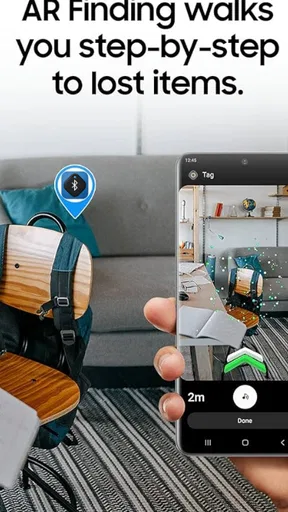
After pairing, test the basic locate action while the tagged item is somewhere nearby and easy to retrieve. Use the app to request a sound from the tag, then follow it to the item. This small rehearsal matters: it shows you what the alert sounds like and whether you can hear it from the places where you tend to leave your belongings. It also gives you a chance to adjust the tag’s position if it is muffled inside a deep pocket or bag.
A realistic first use is the morning search for keys. If you usually set them down near the entrance, put the tagged keys there, step into another room, and try locating them from the app. You will learn whether the sound is noticeable over ordinary household noise and how quickly you can move from opening the app to acting on its prompt. That is more informative than testing only with the tag sitting beside your phone.
I would make that first test part of setup, not wait until you are already late. A tracker is most reassuring when you know how it responds before a stressful search. For a bag you carry outside, you can also check the process at home first and make sure the tag is attached in a way that will not snag or fall off. The tag only helps if it stays with the object.
What “finding” can and cannot mean
It helps to separate locating a nearby item from recovering something that has gone far away. A sound-based search is useful when the tag is close enough for you to act on the alert. It is not the same as having a person physically retrieve an item or a guarantee that an object can be found in every setting. I’d use the app to narrow down a search, while keeping ordinary habits—checking a coat pocket or retracing your route—in the plan.
That distinction is especially important for valuables. A tracker can add a helpful clue, but I would not treat it as a replacement for keeping a wallet secure or for taking care around a bag in public. Likewise, attaching a tag to a pet’s collar may sound convenient, but a tracker is not a substitute for supervision or a purpose-built pet safety routine. The best use is as an extra aid, not as a promise of recovery.
Another useful habit is choosing one consistent place for the tagged item when you get home. The app can help you search, but a landing spot reduces how often you need to search in the first place. For keys, that might be a bowl or hook by the door; for a work bag, it could be a particular shelf. Pairing a tracker with a simple routine is more dependable than expecting the app alone to prevent every lost-item moment.
Common setup snags and everyday trade-offs
If the app does not seem to find a tag, I would check the basics in order: make sure the tag is the one you paired, bring it close to the phone, and confirm that the item has not been separated from the tag. Then reopen the app and retry the action. This avoids confusing a misplaced tag, a connection issue, and an incompatible tracker as if they were the same problem.
It is also worth thinking about where you attach the tracker. A tag hidden deep inside a packed bag may be harder to hear than one placed where sound can escape. On keys, a secure attachment is more important than making the tag completely unobtrusive. For a frequently used bag, a fixed pocket can make it easier to remember where the tag is and to check that it has not come loose.
Compared with the usual alternatives, this app makes the most sense if you already have a compatible smart tag and want to manage it from your Android phone. If you are choosing a new tracker, the first comparison should be compatibility with your phone and tag, followed by the way you expect to search. A generic approach to tracking can be more convenient for someone who owns devices from several ecosystems, while a companion app tied to a particular family of tags is a better fit when its supported hardware is already part of your routine.
The main trade-off is that a tracker-based workflow adds another small thing to maintain: the tag must stay attached, and you need to remember which item it belongs to. That is manageable for keys or a bag you use every day, but less compelling for objects you rarely misplace. If you want a general-purpose phone locator without buying or carrying a tag, this is not the right solution by itself; its purpose is tied to smart-tag use.
Who will get the most from it?
I’d recommend trying it if you regularly lose track of a small set of everyday items, own a compatible tag, and use an Android phone that meets the minimum requirement. It is particularly suited to someone who wants a simple routine: leave the tag attached, open the app when needed, and use the alert as a cue to search nearby. People who share a home can also benefit from agreeing on clear tag names, so everyone knows which tracked item is being discussed.
I’d skip it if you do not own a compatible tag and have no intention of getting one, or if your main need is a tracker that works across a different phone and device ecosystem. I would also hesitate if you expect a tag to eliminate the possibility of loss. The app is most useful as part of a small system—compatible hardware, a secure attachment, and a familiar place for the item—not as a stand-alone guarantee.
Before committing to tracking several belongings, try one tag for the item that causes the most frustration. Use it for a normal week and notice whether you actually open the app, whether the alert helps, and whether the tag stays attached. That trial gives you a grounded answer about whether the app fits your habits, without turning a simple convenience into a bigger setup project than you need.
My take after looking at the everyday workflow
The strongest reason to use this app is that it gives a compatible tag a clear job: help you search for a particular belonging when your memory and usual routine fall short. The weakest reason would be installing it simply because tracking sounds useful, without checking the tag and phone fit first. I’d begin with one familiar object, run a real locate test, and decide from that experience whether the convenience is worth keeping in your routine.
Ever had one of those panic moments where you just can't find your keys or wallet? Yeah, me too. It's like they've developed a mind of their own and decided to play hide and seek. Well, fear not, because the Samsung SmartTag is here to save the day. Let's dive into what makes this nifty little device a must-have for anyone prone to misplacing things.
What Exactly is the Samsung SmartTag?
Imagine having a tiny assistant that helps you keep track of your stuff. That's the Samsung SmartTag in a nutshell. It's a compact, Bluetooth-enabled tracker that you attach to your belongings so you can easily locate them using your smartphone. Sounds pretty futuristic, right? But wait, there's more!
Setting it Up
Getting started with the SmartTag is a breeze. Just download the SmartThings app on your Android or iOS device, pair it with the tag, and you're good to go. The app guides you through every step, making it super user-friendly. Trust me, even if you're not tech-savvy, you'll have it up and running in no time.
Features That Make Life Easier
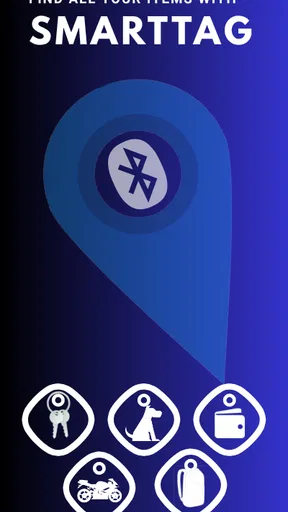
Once you've got the SmartTag set up, it's like having a personal assistant keeping tabs on your stuff. You can attach it to anything – keys, bags, even your pet's collar if they're the adventurous type. If you misplace something, just open the app and hit the "find" button. The tag will emit a sound, guiding you right to your missing item. It's like playing hot and cold, but way more efficient.
Oh, and here's a cool feature: the SmartTag also works in reverse. Say you've got the tag but can't find your phone. Just press the button on the SmartTag, and your phone will start ringing, even if it's on silent. How's that for a lifesaver?
Battery Life and Range
One of the concerns I had was how often I'd need to change the battery. The SmartTag uses a replaceable CR2032 battery, which lasts for several months. So, no constant charging or battery swapping, phew! As for range, it's got you covered up to about 120 meters. Perfect for a quick search around the house or even the yard.
Privacy and Security
In today's world, privacy is a big deal, and Samsung takes it seriously. The SmartTag uses secure encryption to ensure that your location data is kept private. Plus, only you can see where your tagged items are, so no need to worry about unwanted tracking.
Integration with Smart Home Devices
Here's where it gets really exciting. If you're already in the Samsung ecosystem, the SmartTag can integrate with your smart home devices. Imagine coming home and pressing your SmartTag to turn on the lights or the TV. It's like living in the future, and I absolutely love it!
Final Thoughts
In a world where losing things is just part of life, the Samsung SmartTag offers a practical and convenient solution. It's easy to set up, packed with helpful features, and integrates seamlessly with other smart devices. Whether you're the forgetful type or just want some extra peace of mind, this little gadget is worth considering. So, next time your keys decide to go on a little adventure, you'll be ready!
Pros
- Easy to set up with Samsung devices.
- Long-lasting battery for extended use.
- Compact design fits seamlessly on items.
- Reliable tracking with precise location.
- Compatible with SmartThings app.
Cons
- Limited functionality with non-Samsung phones.
- Requires Samsung account for features.
- Range can be limited in dense areas.
- No built-in speaker for sound alerts.
- Limited customization options.
FAQs for Samsung SmartTag
What is the Samsung SmartTag, and how does it work?
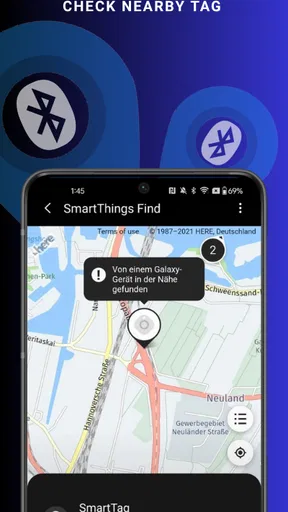
Samsung SmartTag is a small, portable device that helps you locate lost items using Bluetooth technology. It connects to your smartphone via the SmartThings app, allowing you to track the tag's location. By attaching it to keys, bags, or other valuables, you can easily find them using your phone's map interface.
How do I set up and connect the Samsung SmartTag to my phone?
To set up your Samsung SmartTag, download and install the SmartThings app on your compatible smartphone. Open the app, tap ‘Add Device,’ and select ‘SmartTag.’ Follow the on-screen instructions to complete the pairing process via Bluetooth. Make sure your phone's Bluetooth is enabled for a smooth connection.
What is the range of the Samsung SmartTag, and does it work without the internet?
The Samsung SmartTag has a Bluetooth range of approximately 120 meters (390 feet) in an open area. It does not require an internet connection to operate within this range. However, for tracking over longer distances or accessing location history, an internet connection and other SmartThings users are needed.
Can I use the Samsung SmartTag with non-Samsung devices?
Yes, the Samsung SmartTag is compatible with any smartphone that supports Bluetooth and has the SmartThings app installed, whether it's a Samsung device or not. However, some features may be optimized specifically for Samsung Galaxy devices, so check compatibility for full functionality.
Is the Samsung SmartTag waterproof and durable for outdoor use?
The Samsung SmartTag is designed to withstand everyday use, but it is not fully waterproof. It can handle minor splashes and some exposure to dust, making it suitable for most indoor and outdoor conditions. Avoid submerging it in water to ensure its longevity and effectiveness.


